Proper order handling and compliance with the rules can secure only 50% of success. There is a major difference between a user who is just exploring items on Udora and a customer who has already placed an order. In the second case, the customer liked your assortment, pricing, and order fulfilment conditions. The customer preferred your shop from a number of competitors. At this stage, the key is not to let them down and provide high-quality customer service. This determines whether the customer will return to you or not. This article provides tips on making sure that they become your repeat customers.
The "Orders" section
The Orders section contains all information about active, future, and recently completed orders. Your main task is to change order statuses in a timely manner.
Filters in the "Orders" section. Filters are a useful feature that enables you to perform order search and switch from one order to another.
- Filters by delivery date: All, Today, Tomorrow.
- Filters by order status: All, New, Accepted, Photo before delivery, Courier on their way, Completed.
Orders completed earlier are moved to the archive. Details of such orders are available in the web version of your personal area in the "Orders section" → "Archive". Alternatively, you can contact Support for this information.
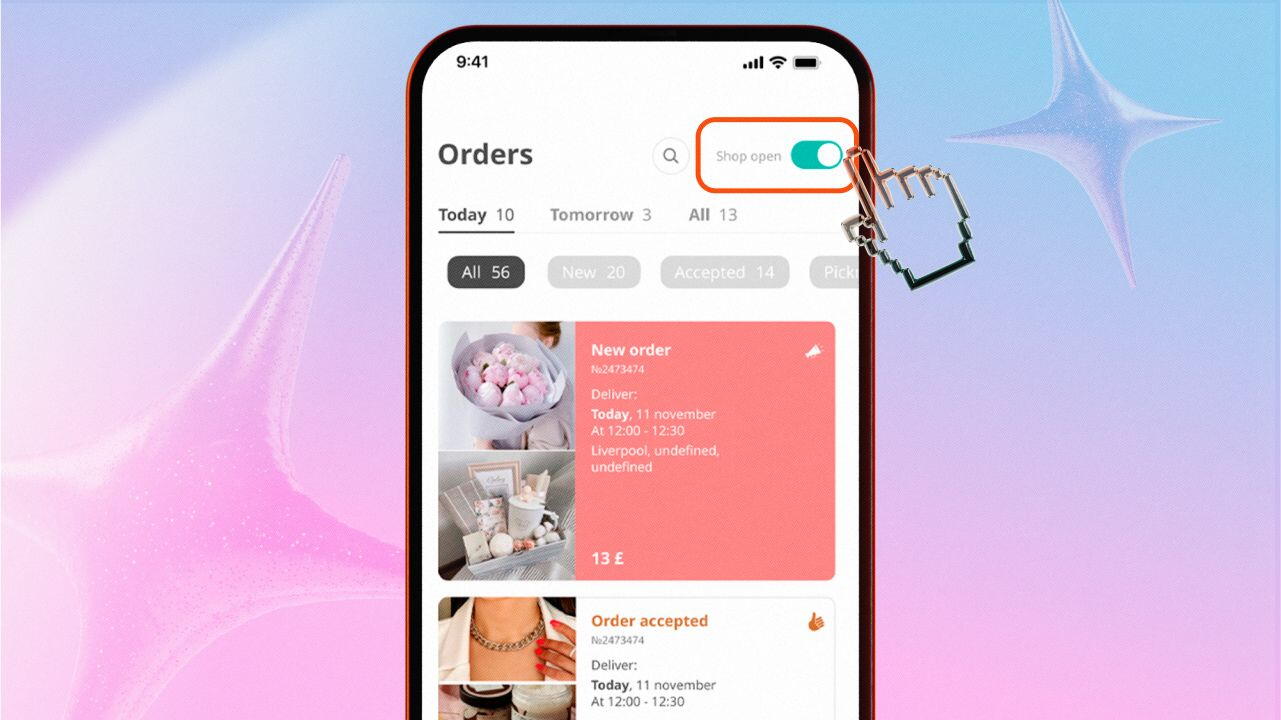
Remember to monitor new orders and realistically evaluate the workload of your shop. With the Hide Shop feature you can temporarily put new orders on hold. To hide your profile, click on the toggle in the upper right corner of the "Orders" section. To reopen your shop, click on the toggle again.
Important note!
- Do not click on the toggle multiple times; just one click is enough to hide your shop.
- Hiding your shop will not affect previously accepted orders; they must be fulfilled.
- If some of your items are out of stock, there’s no need to hide your shop. You can hide out-of-stock items individually in your catalogue in a similar way.
How do order statuses change?
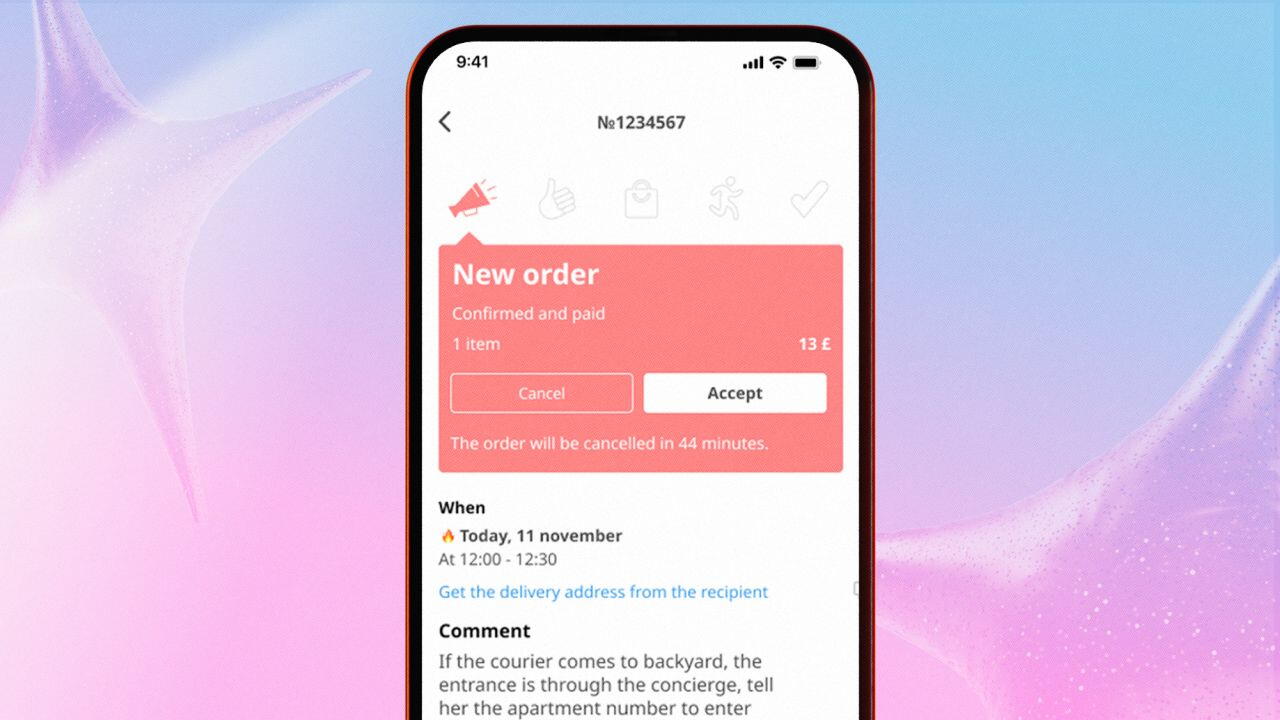
New status. All new orders are highlighted in red in the all orders list.
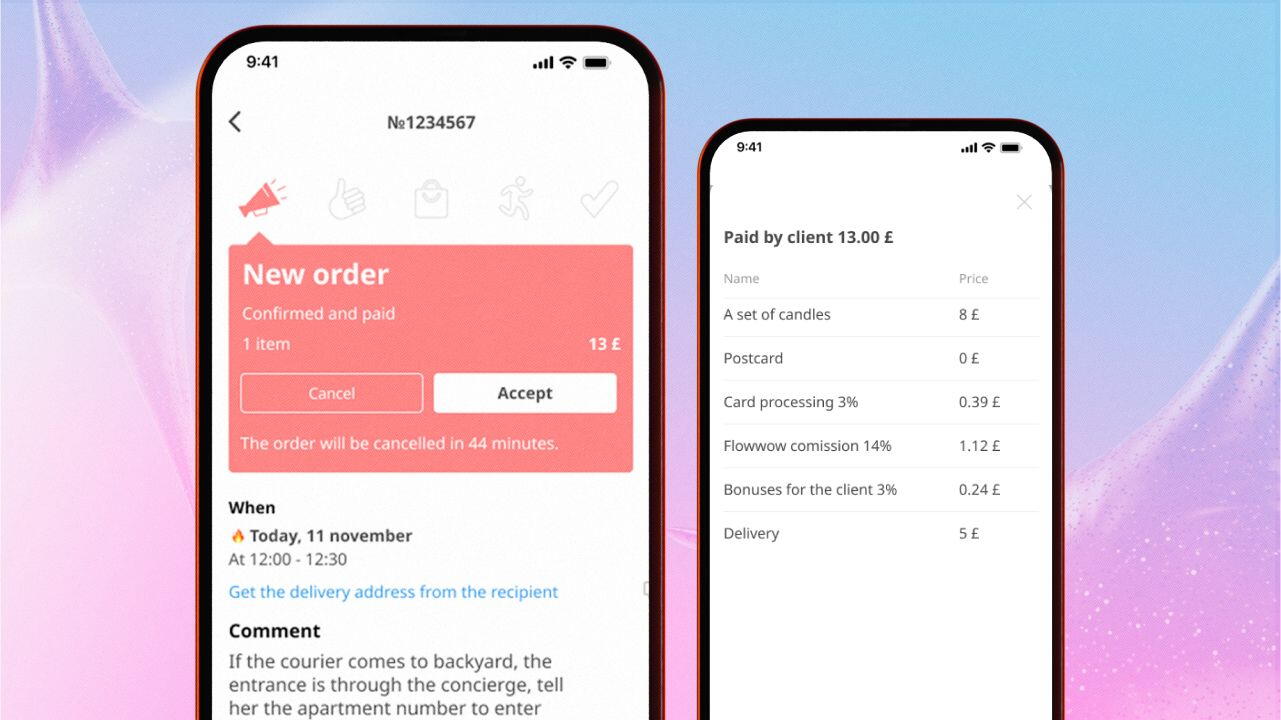
- Click on an order to view its details: composition, photo of items ordered, amount paid, platform and card processing fees.
- All new orders are available to employees assigned as "Director" and "Manager". Shop assistants will only see orders they have been assigned.
- You will receive new order notifications via push notifications in the app and email.
Important note! If you haven't accepted a new order within 15 minutes, you will be reminded by a robocall or a Udora employee. Customers may cancel their order due to a long wait.
Accepted status. Accepting an order is a confirmation of your commitment to fulfilling it.
- Clicking on the "Chat" button opens the order chat.
- By clicking on the "Assign Employee" button, you can assign a shop assistant to fulfil this order.
- At the "Accepted" stage, customers can cancel their order. In the event of an order cancellation, you will receive a notification, and the order status will change to "Order cancelled by the customer". Such orders can be removed from the all orders list.
"Ready for delivery" status. The order status changes automatically to "Ready for delivery" upon uploading a photo of the order. The Ready for delivery status applies to the following item categories only: "Live Plants", "Handmade & Hobby", "Tea & Coffee Shops", "Confectionery & Bakery", "Flowers & Gifts".
- To add a photo, click on the "Upload Photo" button. Photos can be uploaded from Gallery or Camera right in the app.
- Once a photo has been uploaded, the customer will receive a status change notification asking them to rate the item photo positively or negatively.
- Upload the order photo no later than 15–20 minutes before delivery. Customers should have enough time to rate the photo and provide feedback whether they are satisfied with the item or not.
Important note! Allow 10–15 minutes for the customer to rate the photo. If the customer has not rated the photo, please go to the order chat and ask them whether they are satisfied. Please remember that there is no need to delay the order delivery.
Important note! If the customer has rated the photo negatively, please go to the order chat and ask them what exactly they didn’t like about the item to be delivered. Arrange the changes to the order and make them.
How to avoid negative ratings:
- When preparing an order, check the item for quality conformance and make sure it does not have any defects.
- Take photos in a well-lit area so that the item and greeting card are clearly visible.
- Make sure to upload a photo of all items in the order, including extras (greeting card etc.).
- At the customer's request, send them several additional photos via the order chat.
"Courier on their way" status. The order status changes to "Courier on their way" when the order is ready for delivery to the recipient.
Select one of the delivery methods:
- Select "I will deliver myself" to deliver the order on your own.
- Select "Find a courier" if you want to assign an in-house courier from your shop.
For delivery by outsourced couriers:
- Change the order status to "Courier on their way". Upon order delivery, the order status must be changed to "Completed".
- Keep in touch with the courier.
- Inform the courier about all order details.
- Should any problems arise with delivery, the shop is to be held responsible for the order.
If a customer wants to cancel their order:
If delivery has not started yet, the customer will be issued a full refund on their order. If the courier is already on their way at the time of order cancellation, the customer will be issued a refund less the delivery fee, which is to be credited to the shop.
- Customers are supposed to submit a cancellation request via the order chat.
- Once a cancellation request has been submitted via chat, you are required to contact Support and provide the following details: order number, the customer’s order cancellation request, delivery status (whether the courier is already on their way or not). You don't have to cancel such an order on behalf of your shop.
"Completed" status. The order status changes to "Completed" upon delivery to the recipient.
Do not complete an order unless you are 100% sure that the goods have been delivered to the recipient.
How to complete an order correctly:
- If you are delivering an order on your own, complete it immediately upon hand-delivering it to the recipient.
- If an order is delivered by an in-house courier from your shop, they are required to change the order status upon delivery using the mobile app.
- If an order is delivered by outsourced couriers, complete the order once you have been informed of successful delivery.
Add a comment upon order completion:
- Select "Order picked up by the recipient personally" if the order has been hand-delivered to the recipient.
- Select "Order picked up by another person" if, subject to prior approval by the customer, the order has been delivered to a third party to be handed over to the recipient. You are required to leave a comment specifying who picked up the order.
Order management rules and guidelines
High-quality and professional customer service can only be provided by those who have carefully studied the service rules and their rights and obligations towards customers. The main rules are listed below. For an exhaustive list, please refer to the Public Offer.
Important note! If you are not ready to fulfil an order, you can turn it down. For details about order cancellation, please refer to clause 6.5.
Service rules:
- Customers must receive exactly what they ordered. Do not change the order composition. It’s best to hide out-of-stock items in advance to avoid upsetting the customer due to a shop-initiated order cancellation or items not matching their description. You can configure your entire active item catalogue to be updated automatically via an XML file (please contact Support if you want to have this feature enabled).
- Use the Udora chat: all communication must take place exclusively on Udora. If communication takes place outside of Udora, we will not be able to protect you in the event of disputes if the situation so requires.
- Remember about the confidentiality of personal data: when placing an order, customers agree to the use of their data for the duration of order fulfilment. Upon order completion, the customer and recipient data are hidden. You must not retain their personal data or contact the customer/recipient after completing an order.
- Do not spam: do not disturb customers unless it's urgent. Customers have already specified the maximum amount of required information when placing their order.
- Be punctual and polite: meet order fulfilment deadlines, do not change the delivery time without prior approval, and provide excellent customer service.
- Quality goods: take a responsible approach to order fulfilment and supply only high-quality goods.
- Consider all deliveries anonymous by default: do not contact the recipient and do not inform them that they are going to receive a gift. For any questions, please contact the customer or Support. In most cases, recipients do not even know that you are delivering them an order.
- If a surcharge is required: all surcharge invoices can only be issued subject to prior approval by the customer.
- Order cancellation: do not cancel orders at the customer's request. Use the Support chat and specify the order number and cancellation reason.
Important note! If the situation goes out of hand and things just don’t go to plan, please refer to the Order Emergency Response Guide.
Important note! By default, customers have the option to add a free Udora greeting card to their order. If you do not have Udora branded greeting cards, use the Support chat to order greeting cards; for the active order, provide the customer with any greeting card for free.
Follow our recommendations to fulfil orders quickly and get positive customer ratings. Follow our blog — there will be more articles coming to keep you updated with relevant and useful information!