Completing shop moderation is a straightforward process, especially when you follow our simple checklist.
Step 1. Download the Udora Seller app and allow notifications. This way, you’ll receive real-time order updates and can manage your shop from wherever you are.
Step 2. Open the app, tap Notification settings, and complete each field as prompted.
Step 3. Enter your mobile phone number and the verification code sent via SMS (your phone number is your login, and the SMS code is your password).
Step 4. Complete your shop profile:
- Enter your shop name. If you haven’t decided on an official name yet, don’t worry – simply make one up for now
- Provide your address: this is where orders will be picked up by couriers. It could be your flat, office, warehouse, or another location
- Specify your working hours: the times you’re available to process orders. You can always change this later in the web version of your profile under Opening hours or by contacting Support. Do keep in mind that if you specify 24/7 availability, you’ll need to accept orders at any time – day or night – within 90 minutes
- Press Next
Note: Once you pass moderation, you can go into the web version of your personal account to set up detailed delivery conditions. Head to Profile > Delivery conditions and choose delivery zones based on their distance from your shop. Here, you’ll also be able to set delivery fees for different locations within your area.
Step 5. Enter your shop’s payment details so we can send the earnings from your orders. Press Next to continue.
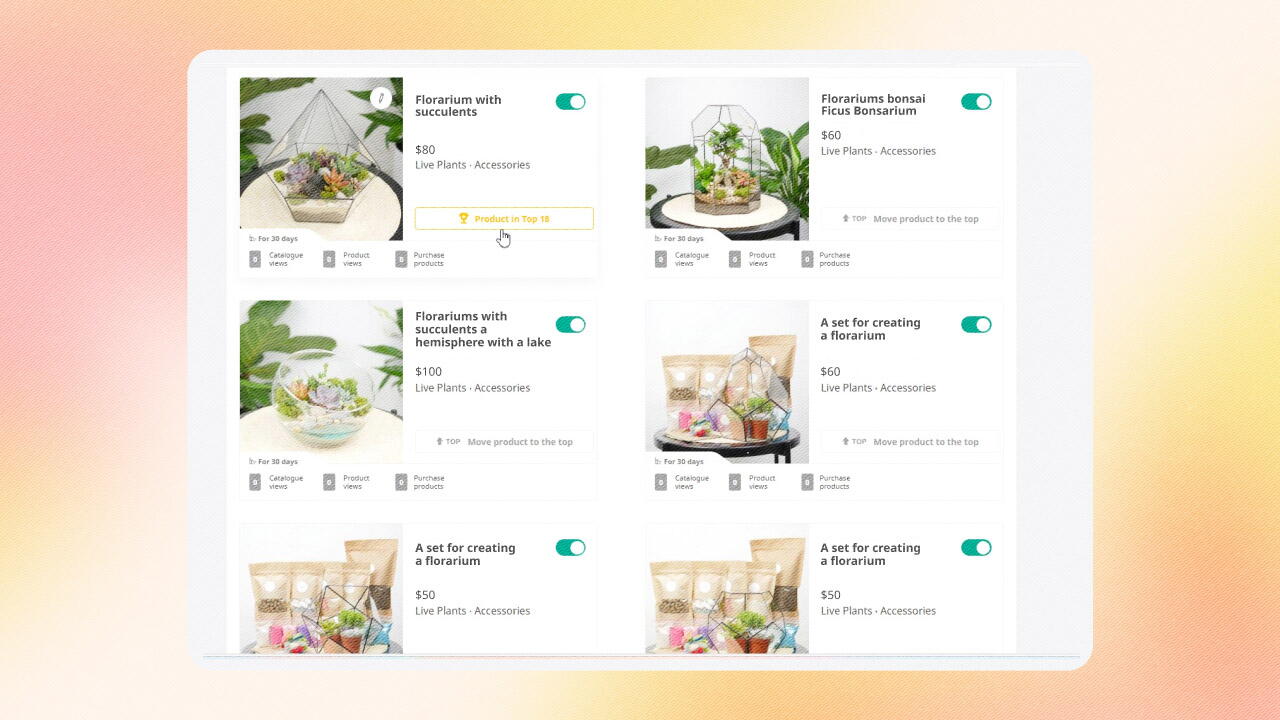
Step 6. Add products. You’ll need at least 10 product listings to pass moderation, although we recommend listing 15 to get your shop off to a great start. Here’s how you can do this:
- Tap Items > Create item
- Choose the appropriate category and subcategory for your product from the list. If you’re unsure, don’t hesitate to contact Support for guidance
- Fill in the product details:
● Upload high-quality photos in a consistent style, showing the product from all angles. The main photo should display the entire product, while the others can include close-ups and different perspectives
● Specify the product name, price, any discounts (if applicable), and product characteristics (such as weight, size, etc.)
● Indicate production time (if the product is made to order) or stock availability (if it’s ready to be shipped)
● Complete the composition and description fields using our ‘Write with AI’ feature for assistance
● Don’t forget to add the minimum order quantity
● Press Create item
Repeat this process for all your products. The more information you provide, the easier it will be for customers to make a purchasing decision.
Remember, your products represent your shop. To attract customers, upload high-quality photos, set reasonable prices, and offer quick production and delivery times whenever possible.
Step 7. Double-check your contact details in the web version of the site (email, phone number) and add staff contacts if needed. All employees must be logged into the app with their phone numbers.
Go to Profile > Employees
Remember: it’s essential to enter your work phone number, as this is where you’ll receive calls from the automated system if you don’t notice a new order being placed.
IMPORTANT: Inform all staff members listed in the Employees section that they need to handle new orders promptly and respond to notifications from the Udora team in a timely manner.
Step 8. Now, your shop is ready to be sent for moderation. It will automatically be submitted once you’ve completed your profile, added at least one product, and set up a delivery zone.
Here’s what we won’t approve during moderation:
- Labels of well-known brands
- Alcohol as a standalone product (not part of a set)
- Weapons
- Tobacco
- Fireworks
- Political symbols
Our team will review your profile promptly and get in touch with you via the Chat section. If you encounter any difficulties, you can always message us for quick assistance.
Step 9. Before activating your shop, you’ll have a chance to practise with a test order. This will guide you through all the order statuses so you can get a feel of how everything works. Don’t worry, you don’t need to actually process the order! It’s considered complete when you reach the Completed status.
Important: After your shop is activated, you may receive orders without an address – this is perfectly normal, so don’t get alarmed! You can find more details on how to manage these orders here.
Need help or have any questions? Reach out to our Support chat – we're happy to assist!