Why good photos matter: better photos → more orders
High-quality product images can make a whole difference when promoting your items and attracting new customers. While online, customers can't physically touch or try products, so it's crucial to showcase all the benefits through photos and videos. Remember: the better your content, the more likely you are to get an order.
How to create a product listing that is sure to catch the eye?
- Learn what you can't sell on Udora.
- Take great product photos, whether it's your phone or a professional camera.
- Add your photos, descriptions, and item details, using the Udora app or web platform.
- View your listing as a customer.
We'll dive deeper into each point below. Let's go🚀
Basic content rules for our sellers
What definitely won't pass moderation on Udora:
- Labels of well-known brands and replicas.
- Alcohol as a standalone product (not in a gift set) — please check with support for country-specific regulations.
- 18+ content.
- Weapons.
- Tobacco.
- Fireworks.
- Political symbols. Exception for the images of national flags as decoration.
- Any violence-related content.
Content Requirements for Successful Moderation
Photos:
- Up to 10 photos, each at least 1200x1200 pixels.
- All the photos and videos must be original, it’s not allowed to use copyrighted materials.
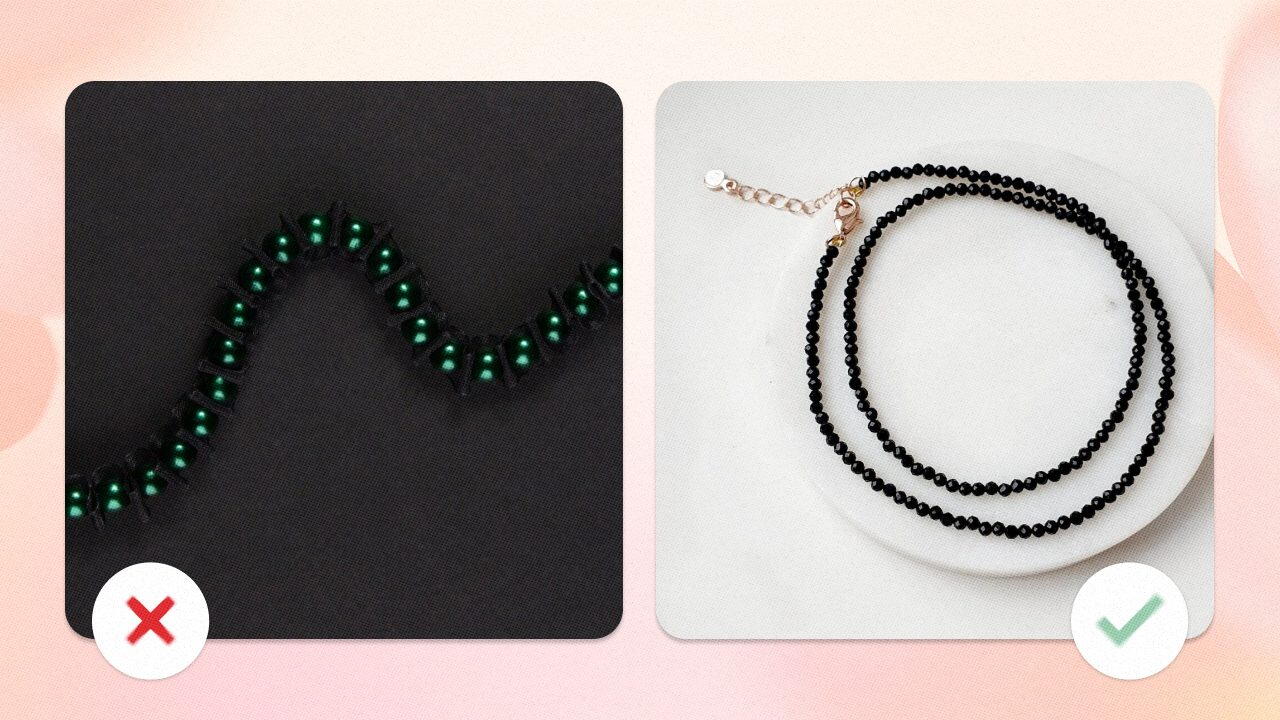
- Ensure your photos are clear, well-lit, and in focus.
- Don’t crop your product.
- Use a plain background with no distracting details. Don’t shoot on the floor and pavement.
- Show your product from various angles, like close-ups, side shots. Consider shooting with models or using props.
- There should be no contact details (phone number, address, email, social media links) directly on the image. All information should be in the product description.
- Use real backgrounds instead of cutting out your product and placing it on a fake background.
Videos:
Add a vertical video up to 30 seconds long and 100MB in size. It will be automatically cropped to a 1:1 format when uploaded.
Photo Image and Description:
- Description must match the image. If the picture shows a bouquet of 50 red roses, the text should reflect that. One photo = one product.
- Fill in all the info in the description:
◾‘Composition’ and ‘Weight’
◾‘Description’
◾‘Production time’
◾‘Item name’
Lighting
Shoot in natural daylight for authentic photos without shadows or glare. A lightbox can be used for product photography.
Good lighting helps customers see the product better.
Clarity
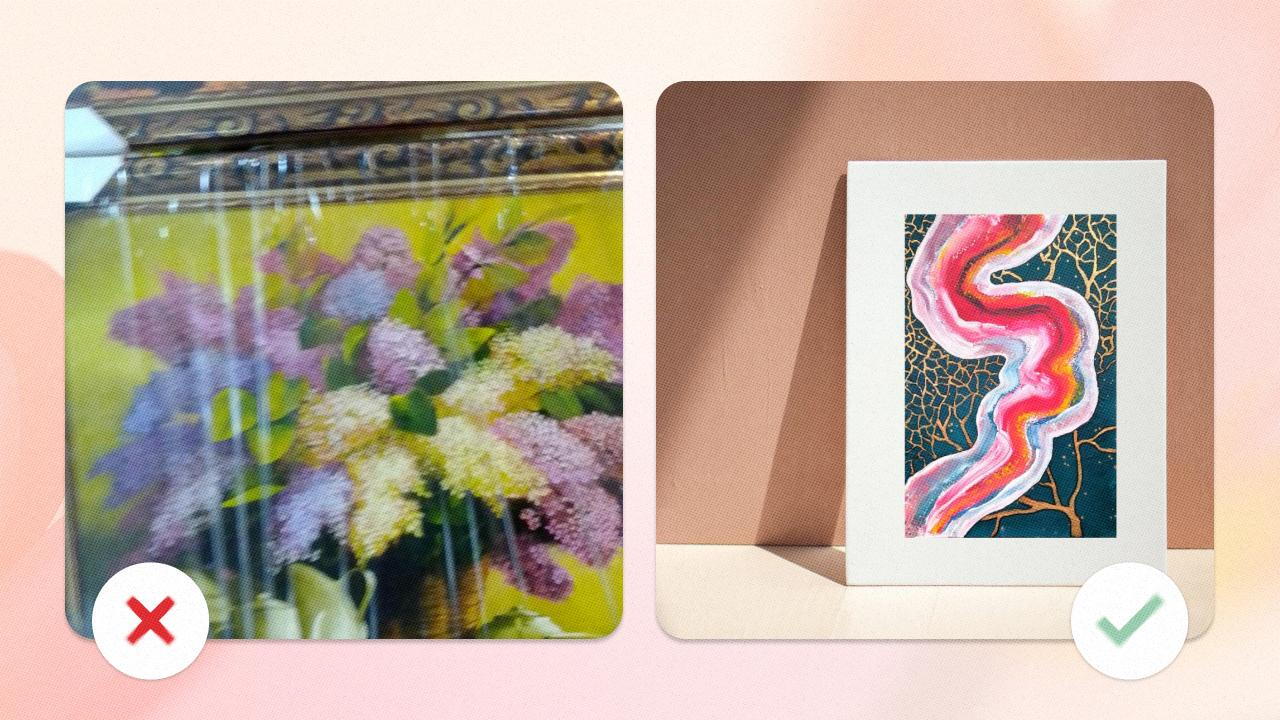
Photos and videos should be clear. A blurry image is a turn-off for customers — if the seller can even take a good photo, what to expect from the order?
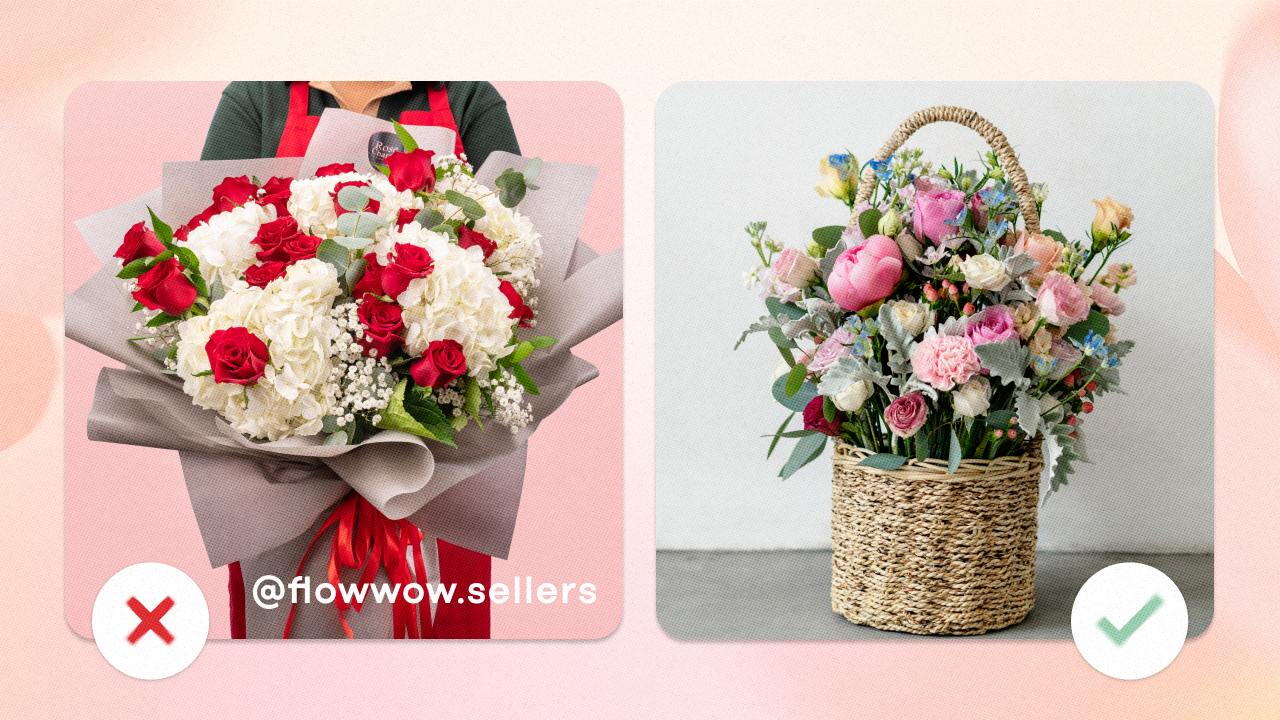
Text-free images only
Photos and videos containing watermarks, links, or shop details will not
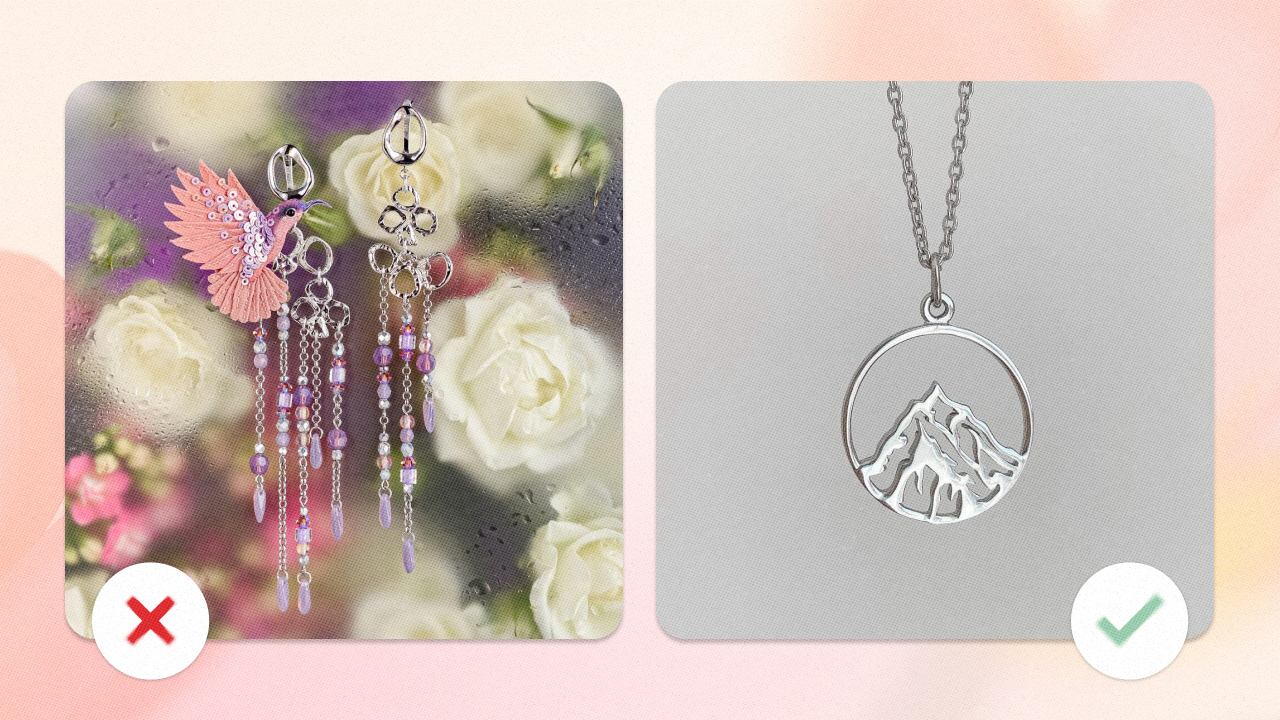
Backgrounds
Your product image should have a neutral background. Light colours, shades of grey and cream are ideal, but avoid pure white. If you need to photograph a light or transparent object, you can use a contrasting dark background. Photos of products in natural settings are also acceptable, but ensure the background doesn't distract from the product.
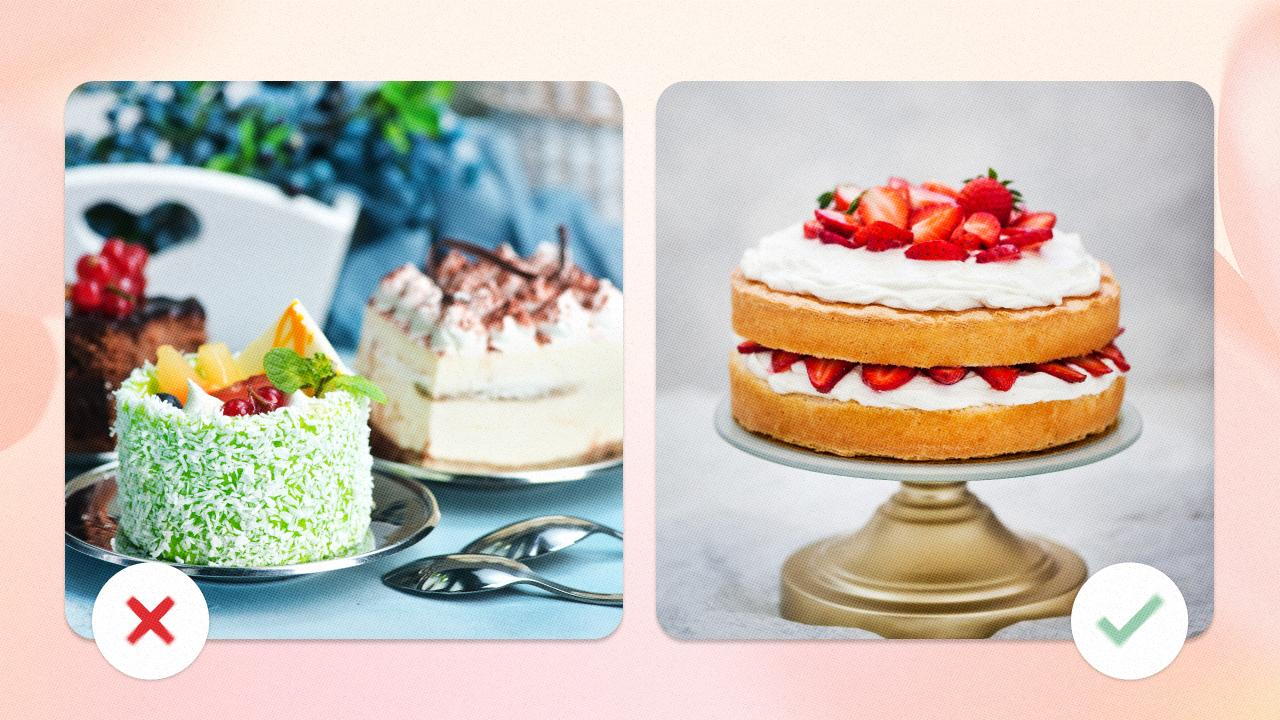
1 item = 1 photo
Don’t show different variants of a single product in one photo. For example, don't display different colors of the same balloons or two cakes with different decorations in the same image. Extra items can confuse customers and make it unclear what you're actually selling.
Don’t cut the photo
Please ensure that products are fully visible in all images. A complete view of the product allows customers to understand its real size.
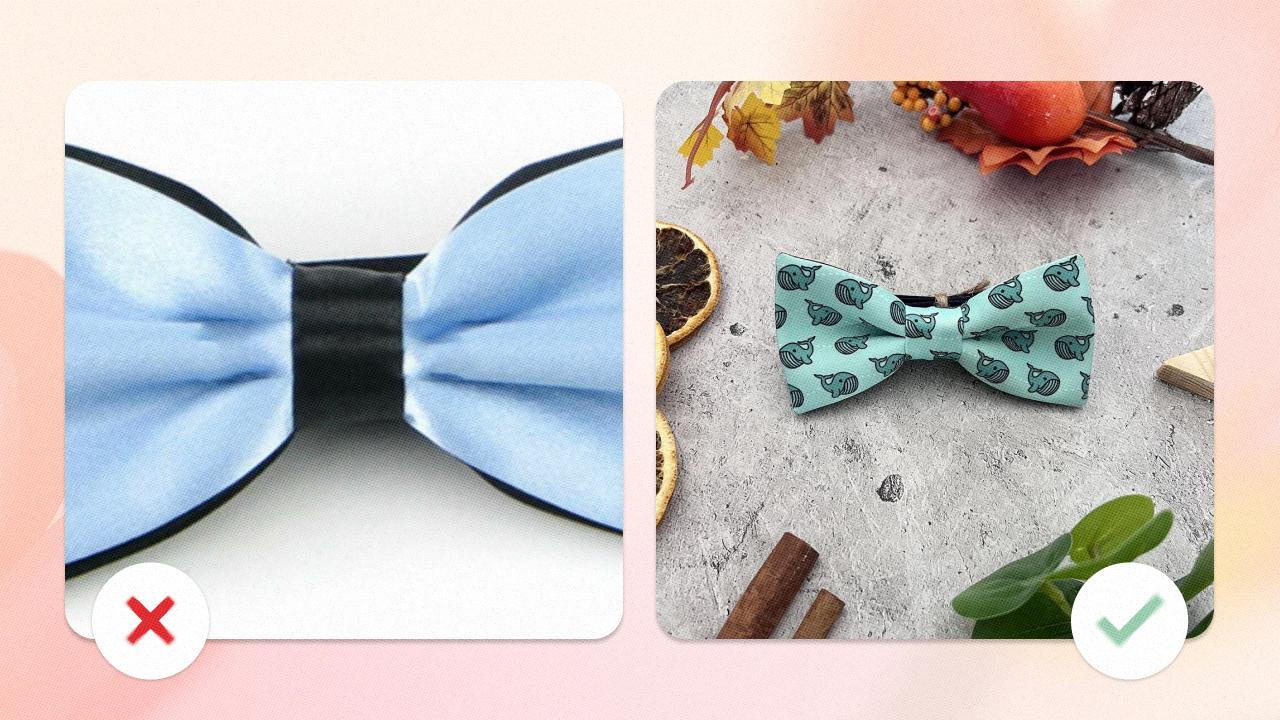
Don’t use retouch and filters
While minor adjustments to colour and lighting are okay, please avoid heavy filters or retouching that might distort the product's appearance.
It's important that customers can accurately judge the product's colour before they buy. Let's show them the real deal.
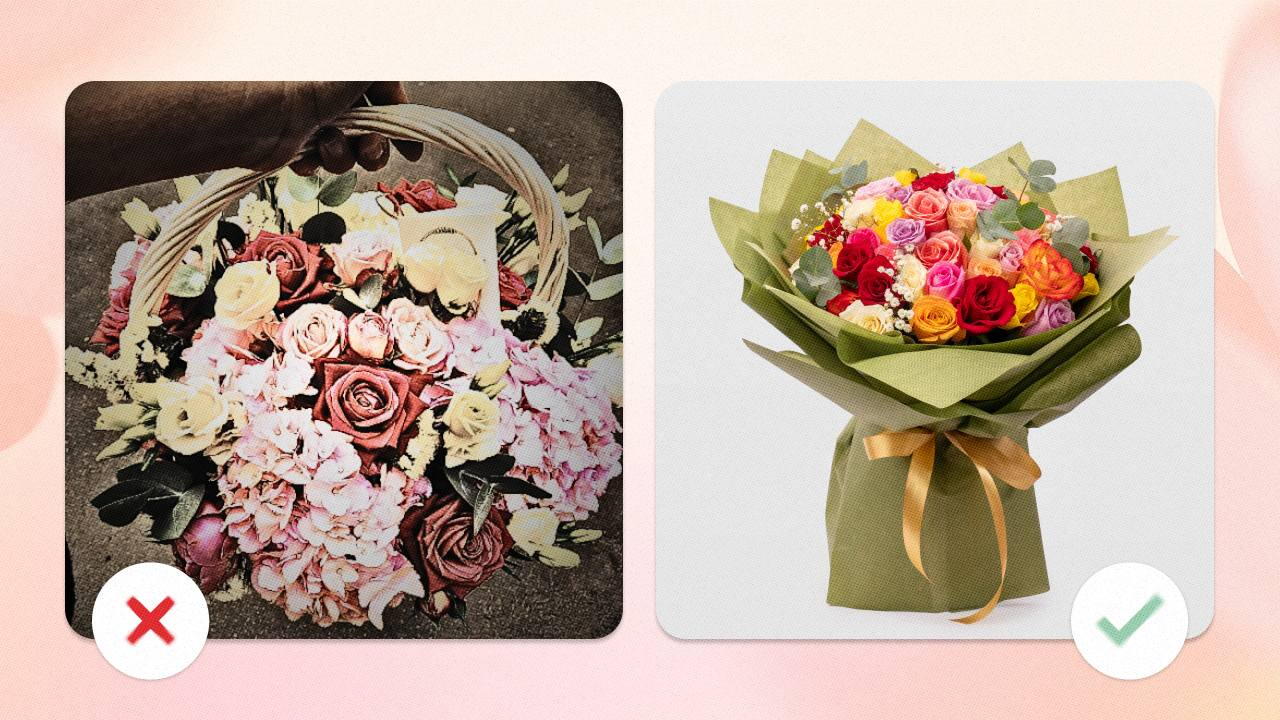
Avoid cutouts on artificial backgrounds
A simple white background is always a win-win. With a fake background customers will spot the editing straight away and may question the authenticity of the product. These doubts are definitely not going to help sales.
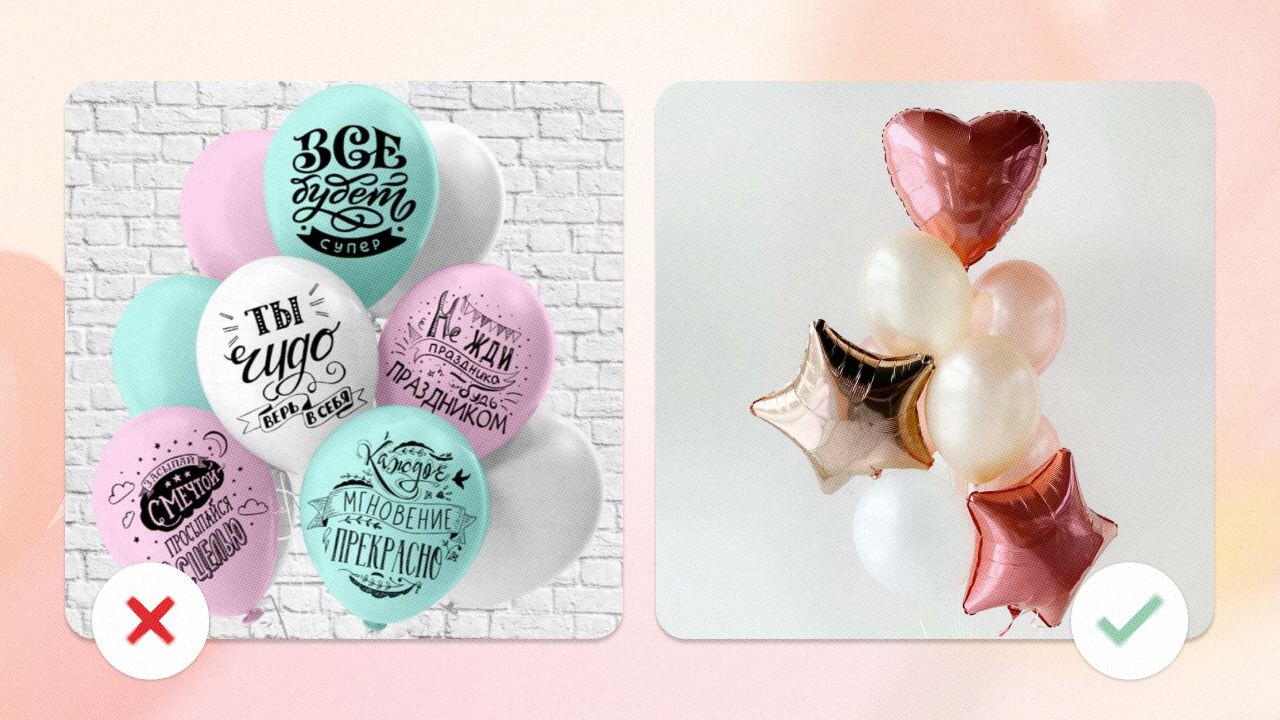
Make sure visual and textual content align
If a product is named 'Candle', the image should show a candle, not a diffuser. If the card states the colour is 'dark blue', the image should be dark blue, not black or turquoise. Similarly, if the photo shows 9 pink peonies, the title and description should match.
How to add card to your Udora profile
For moderation, at least 10 cards are required, but it's recommended to add a minimum of 15 for a successful start.
To add a product card to your shop via the app:
- Go to the ‘Items’ section and tap ‘Create an item’.
- Select a category for your product. If you have any doubts, contact support.
- Specify a subcategory, e.g., ‘Flowers’ → ‘Mono bouquets’.
- Specify the product type: ‘Ready-made item’ or ‘Permanent’.
- Upload product photos and enter the details:
◾The main photo should show the entire product, while the others should show it from different angles and in close-up.
◾Enter the name, price, discount (if any), and characteristics (e.g., weight, size).
◾Fill in the composition and description using the ‘Write with AI’ function.
◾Specify the size and minimum order quantity. - Click ‘Create’.
As for the web version:
- Go to the Udora website and log in to your account using your phone number.
- Go to the ‘Items’ section and tap ‘Create an item’.
How a Product Card Works on Udora
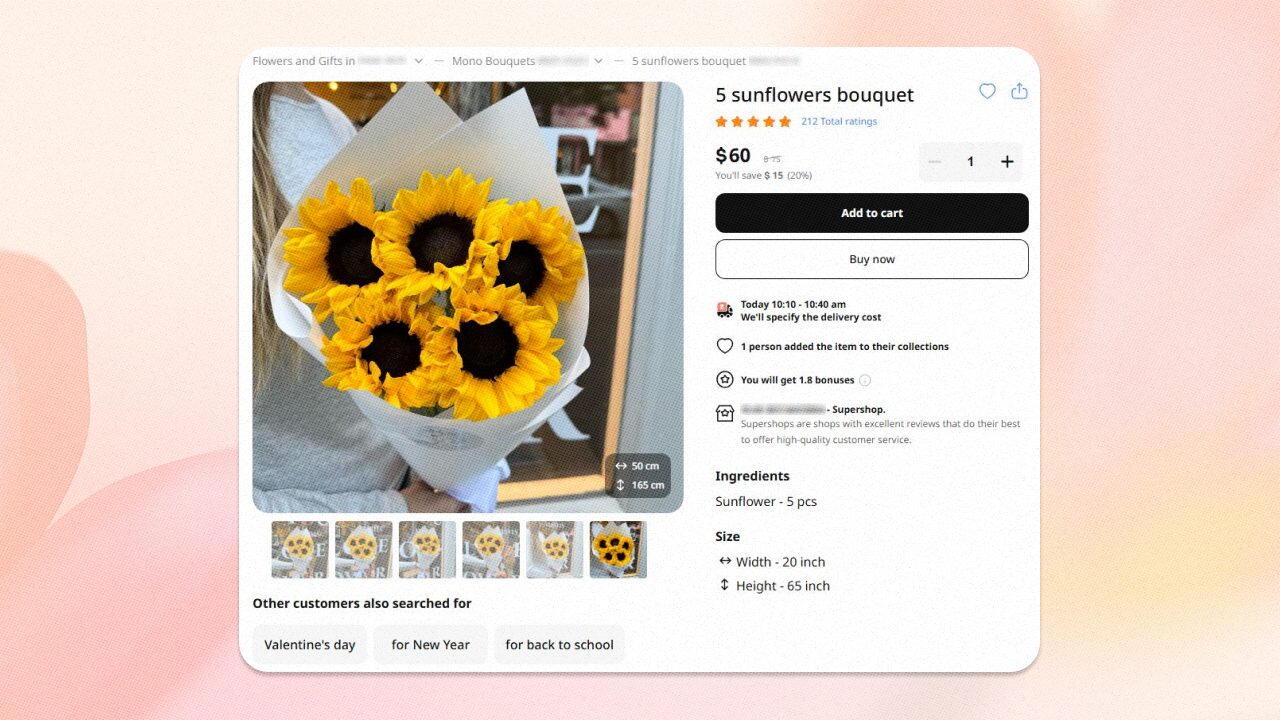
Each product card on Udora consists of two parts: a text one and a visual one.
- The text part includes the product name and description. Each category has its own required parameters.
◾For more detailed information on filling out the text part, check out our article on SEO. - The visual part is a gallery that includes:
◾Main photo (displayed first in the card and in the catalogue).
◾Additional photos (up to 6, it's important to add at least 5 different angles).
◾Video.
Below you can see how your product card will look like to Udora customers.
Conclusion
This guide will help you create product listings that attract more customers on Udora. If you're already familiar with these guidelines, check out our guide ‘How to Create Great Product Photos and Videos’ to enhance your content and make it even more appealing.
Need help or have any questions? Reach out to our Support chat – we're happy to assist!